Physical Address
304 North Cardinal St.
Dorchester Center, MA 02124
Physical Address
304 North Cardinal St.
Dorchester Center, MA 02124

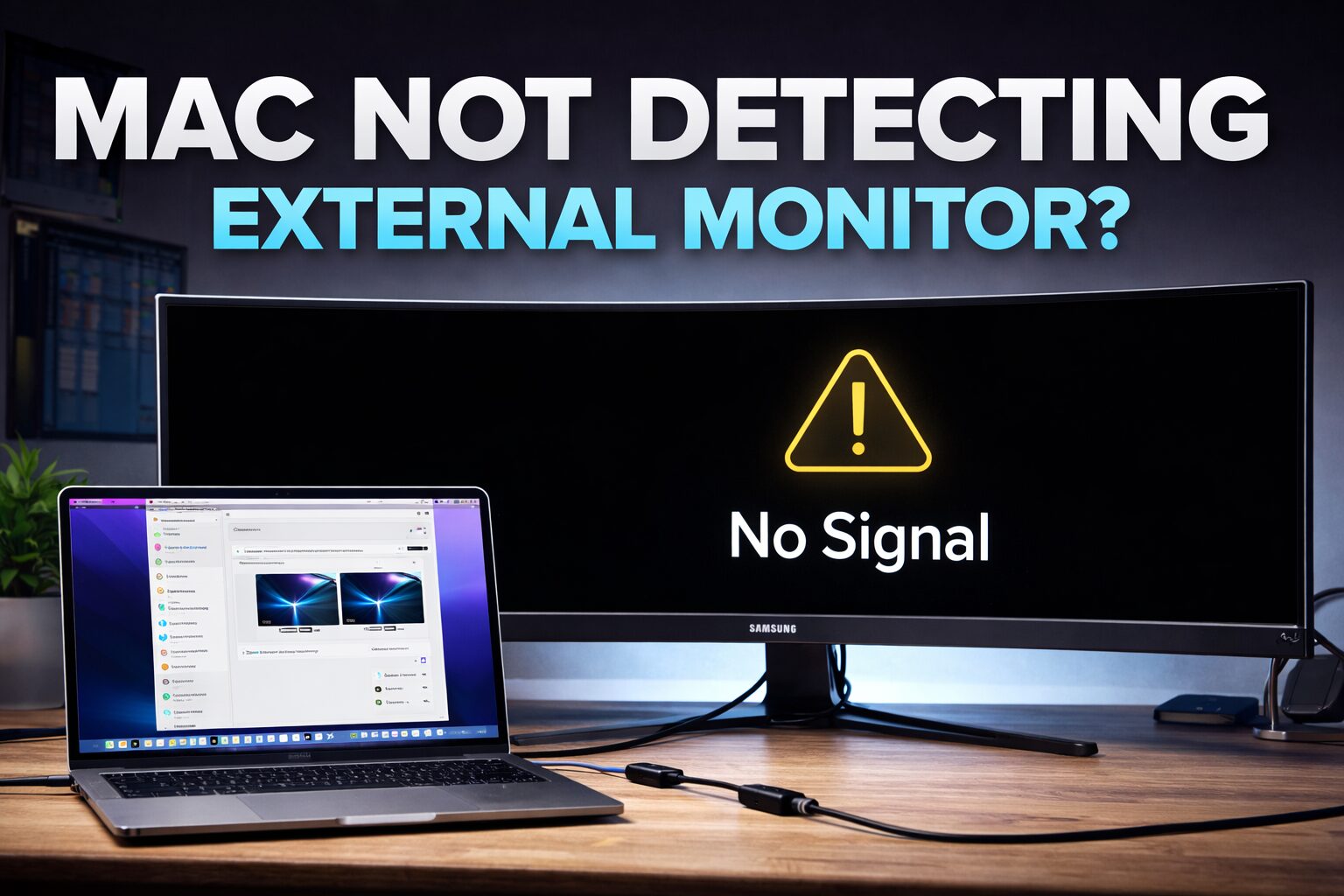
If your Mac suddenly stops detecting your Samsung Odyssey G9, especially when using DisplayPort 1.4 or USB-C, you’re not alone.
This issue commonly appears on M1, M2, and M3 Macs and can be extremely confusing because everything looks like it should work.
Typical symptoms include:
After hours of troubleshooting cables, firmware, and monitor settings, the real cause turned out to be something unexpected:
Corrupted macOS display configuration files.
Luckily, fixing it only takes a few minutes.
macOS stores external display information in system configuration files. These files store things like:
If these files become corrupted, macOS may detect that a monitor was plugged in but fail to initialize it correctly.
Deleting them forces macOS to rebuild the display configuration from scratch.
⚠️ Warning: This resets display settings. Your Mac will rebuild them automatically after reboot.
Tested on:
Unplug the monitor completely from your Mac.
Go to:
Finder → Applications → Utilities → Terminal
Run these commands one at a time:
rm -f ~/Library/Preferences/ByHost/com.apple.windowserver.displays*.plist
sudo rm -f /Library/Preferences/com.apple.windowserver*.plist
sudo killall Dock
You will be prompted for your administrator password.
Restart normally from the Apple menu.
→ Restart
Once the Mac has rebooted, reconnect your monitor.
The display should now appear in:
System Settings → Displays
macOS caches monitor configuration data in hidden .plist files.
If those files become corrupted, macOS may attempt to use invalid display configuration data when negotiating the DisplayPort connection.
Deleting the files forces macOS to:
This resolves many cases where external monitors are detected but fail to initialize.
If you’re using a Samsung Odyssey G9, also check these monitor settings:
Menu → Game → Adaptive Sync → OFF
Menu → System → DisplayPort Version → 1.4
macOS tends to behave more reliably when Adaptive Sync is disabled.
If your Mac suddenly stops detecting an external monitor, the issue may not be your cable, dock, or monitor hardware.
Sometimes the problem is simply corrupted macOS display configuration files, and resetting them can restore normal operation in minutes.
This fix resolved my Samsung Odyssey G9 DisplayPort issue instantly after hours of troubleshooting.
This fix originally came from a Reddit discussion where several users experienced the same issue with Macs not detecting external monitors.
View the original Reddit discussion
You can find more fixes in our Troubleshooting section.